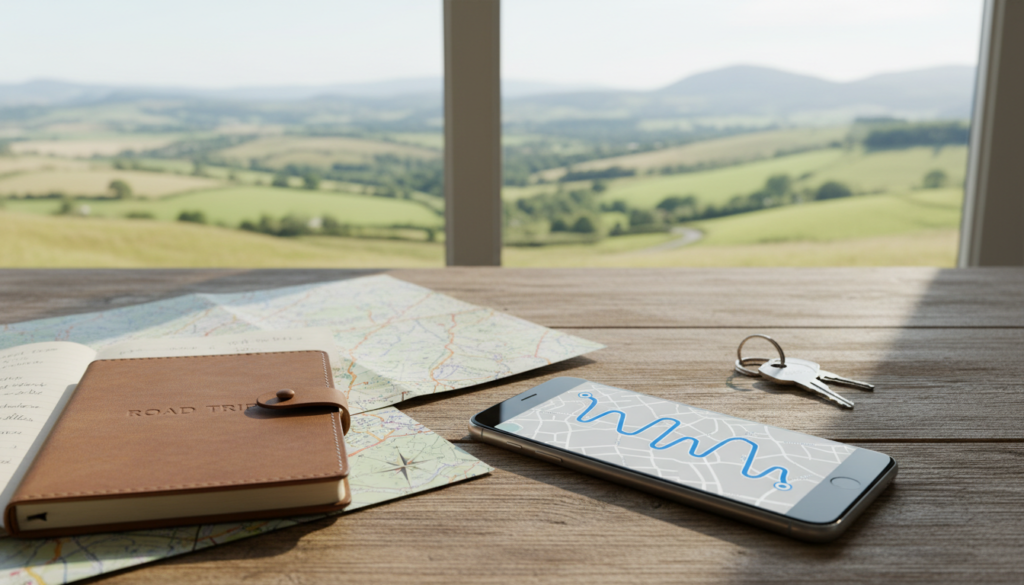

To Download Google Maps Offline before a journey, choose an area that covers the entire road route rather than only your destination. Mobile coverage can be patchy on rural UK roads, inside tunnels and across remote regions of the United States. Downloading a Google Maps area before leaving helps with basic driving directions when mobile data disappears. It does not replace road awareness, local closures or emergency planning.
Quick answer: Start with the simplest check and test again before changing further settings. This guide distinguishes app issues from account, network or device problems, and notes US/UK context where relevant.
Download Google Maps Offline: Before You Leave
Step-by-Step Troubleshooting
1. Download the map on Wi-Fi
Open Google Maps on Android or iPhone, tap your profile image, choose Offline maps and select an area. Zoom to include the whole route rather than only the destination, then choose Download. Menu labels can vary slightly. Make sure you have enough free storage and a reliable Wi-Fi connection.
Practical tip: After this step, repeat the original task once and write down whether the result changed. If it did, you can usually stop here rather than reset unrelated settings.
2. Include alternate routes and towns
For a US national park trip or a route through the Scottish Highlands, download a broader rectangle covering approach roads and potential detours. Offline navigation may fail if the trip extends beyond downloaded coverage. Plan where petrol stations or fuel stops, lodging and emergency services may be located before departure.
Practical tip: After this step, repeat the original task once and write down whether the result changed. If it did, you can usually stop here rather than reset unrelated settings.
3. Know what offline navigation cannot do
Google notes that offline maps have limitations. Traffic conditions, alternative routes, public transit, cycling or walking directions may not work as they do online. Temporary road restrictions and closures may also be missing. Treat the offline route as a fallback, not a guarantee that the fastest or safest road is open.
Practical tip: After this step, repeat the original task once and write down whether the result changed. If it did, you can usually stop here rather than reset unrelated settings.
4. Update the map before travel
Offline map files can become outdated. Check the download status and update availability shortly before leaving. If you travel frequently to the same area, review storage usage and remove obsolete downloads rather than filling the phone. A map that was previously downloaded may not remain available indefinitely.
Practical tip: After this step, repeat the original task once and write down whether the result changed. If it did, you can usually stop here rather than reset unrelated settings.
5. Save key details separately
Write down the destination address, important confirmation numbers and an alternative contact method. Carry the relevant road signs and navigation information for emergencies. On a trip across the USA or UK, confirm any vehicle-specific restrictions and avoid relying solely on the app for hazardous-road decisions.
Practical tip: After this step, repeat the original task once and write down whether the result changed. If it did, you can usually stop here rather than reset unrelated settings.
6. Troubleshoot missing offline directions
If navigation reports no route, confirm the route lies fully inside the downloaded area. Check phone location permissions and GPS reception. Reconnect to the internet when safe, update the area and retry. An offline map does not solve all GPS errors, so check location accuracy separately.
Practical tip: After this step, repeat the original task once and write down whether the result changed. If it did, you can usually stop here rather than reset unrelated settings.
Checklist Before You Try Again
- Confirm the exact warning or error, rather than guessing from symptoms.
- Use official settings and software updates rather than third-party ‘fix’ downloads.
- Test one change at a time so you can identify the actual cause.
- Keep account credentials and personal information private.
- For workplace or school accounts, ask the administrator before changing managed settings.
Related USAPicNews Guides
Frequently Asked Questions
Can Google Maps work without mobile data?
For supported driving routes inside downloaded areas, some navigation works offline.
Does offline mode include live traffic?
No, real-time traffic features need a connection.
Will downloading a map improve GPS accuracy?
Not necessarily; maps and GPS location are different components.
Official Sources
Editorial note: Interface names and availability can change by software version, device and country. Follow the provider’s current guidance for your specific account.
Remember to Download Google Maps Offline again when your saved area expires or your road trip changes.
Download Google Maps Offline for US and UK Rural Travel
A US road trip may cross long distances between towns where mobile coverage is unreliable. Before departing, choose a download area wider than the fastest proposed route so that a reasonable detour remains on the map. Include the town where you expect to buy fuel and the area around your accommodation. Confirm that the map has finished saving before leaving Wi-Fi.
In the UK, trips through the Highlands, Snowdonia or remote coastal roads can also pass through weak-signal areas. To Download Google Maps Offline effectively, capture both the approach roads and your destination rather than downloading only a small rectangle around the final village. Save important phone numbers and addresses separately, since a downloaded map does not provide live traffic, public transport details or every closure.
Before travelling, put the phone briefly into airplane mode while parked or at home and test whether the relevant downloaded area is accessible. Restore normal connectivity afterwards. Remember that GPS reception, offline data and driving directions are separate systems.


