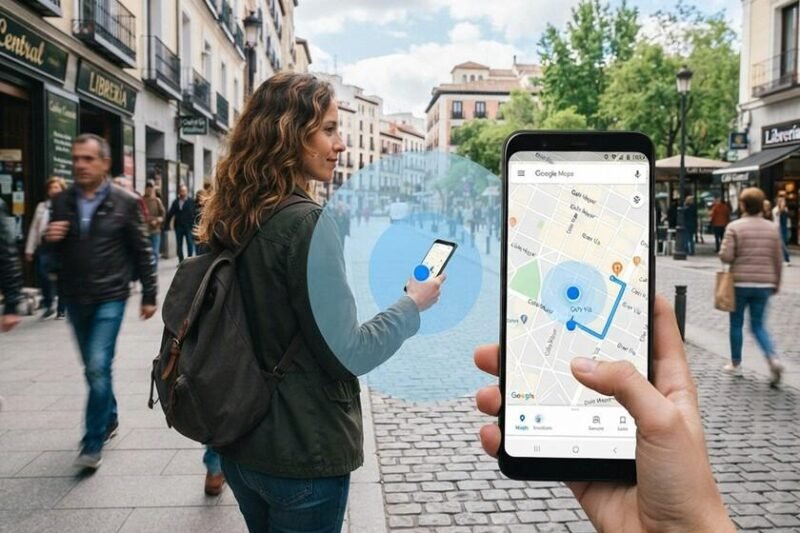

Are you experiencing a Google Maps wrong location problem? Sometimes the blue dot appears on the wrong street, shows a different city, or stops moving during navigation. This can be frustrating when traveling, driving, or searching for nearby places.
Fortunately, most location errors are caused by GPS signals, incorrect phone settings, or temporary connectivity issues. Here are 10 practical ways to improve accuracy.
Why Does the Google Maps Wrong Location Problem Happen?
Your smartphone uses GPS satellites, Wi-Fi networks, and cellular signals to estimate its position. Tall buildings, underground parking areas, weak connections, and restricted permissions can reduce accuracy.
The problem usually does not mean your phone is damaged. Simple settings adjustments may restore reliable positioning.
1. Enable Location Services
Location access must be enabled for accurate navigation.
Android: Open Settings → Location → Use Location.
iPhone: Open Settings → Privacy & Security → Location Services.
Enable the feature, reopen the navigation app, and refresh your position.
2. Turn On Precise Location
Approximate positioning may not accurately identify individual streets.
On iPhone, open Location Services, select the app, and enable Precise Location.
Android users can check the app’s location permissions and enable precise access where available.
3. Improve GPS Accuracy
Some Android devices provide an additional accuracy feature.
Visit Settings → Location → Location Services → Google Location Accuracy.
Enable Improve Location Accuracy if available. This allows your phone to use additional wireless signals for positioning.
4. Check Your Internet Connection
Weak connectivity can affect map loading and location-related features.
Switch between mobile data and Wi-Fi, disable Airplane Mode, and refresh your current position.
Avoid unfamiliar public networks when troubleshooting.
5. Calibrate Your Compass
Does the blue arrow point in the wrong direction?
Open the navigation app, tap your location marker, and select Calibrate if available.
Follow the displayed instructions. Some devices support camera-based calibration or figure-eight phone movements.
6. Move Outdoors
GPS signals can become unreliable inside buildings, tunnels, and underground garages.
Move to an open area with a clearer view of the sky.
Wait for your device to update. A smaller blue accuracy circle generally indicates a more confident location estimate.
7. Disable Battery Saver Temporarily
Power-saving settings can sometimes interfere with location updates.
Turn off Battery Saver on Android or Low Power Mode on iPhone temporarily.
Check whether the position updates more consistently before changing other settings.
For related smartphone tips, read our Android Battery Saving Tips guide.
8. Update the Application
Older software may contain bugs affecting performance.
Open the Google Play Store or Apple App Store and install any available update.
Restart the application afterward.
9. Restart Your Phone
Temporary software glitches occasionally prevent location information from refreshing.
Restart your smartphone, reopen the map, and tap the current-location button.
If the error disappears, no additional changes may be necessary.
10. Follow Official Troubleshooting Instructions
If the Google Maps wrong location problem continues, follow Google’s official location accuracy guide.
It explains GPS limitations, compass calibration, location permissions, and connectivity checks.
Frequently Asked Questions
Why does my GPS show another city?
Your device may be using outdated or approximate location information. Check permissions, connectivity, and satellite reception.
Can Wi-Fi improve positioning?
Yes. Nearby wireless networks can help supported devices estimate their location when GPS reception is limited.
Can a VPN change my displayed location on google ?
A VPN may affect network-based location estimates, but it does not normally change your phone’s GPS coordinates.
Final Thoughts
The Google Maps wrong location issue can often be resolved by enabling precise positioning, improving GPS reception, checking connectivity, or updating the app.
Start with simple settings before attempting advanced troubleshooting. Always stop somewhere safe before adjusting navigation settings while traveling.



Pingback: Why Is Google Maps Not Updating My Location? - Usa Pic News
Pingback: Google Maps Not Working on Android Auto? How to Fix It