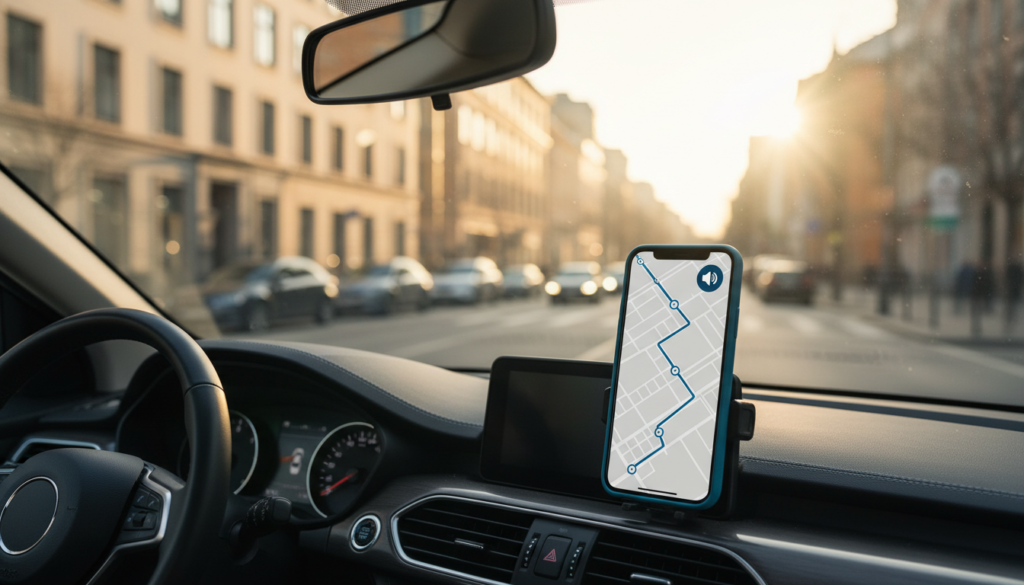

Google Maps Voice Navigation Not Working can happen when directions are muted, media volume is low or sound is sent to a different device. A map that shows turns but says nothing can make an unfamiliar journey stressful. Before driving in a US city or on UK roads, test the route while parked. Silent navigation commonly comes from muted guidance, low media volume or audio being routed to Bluetooth rather than a phone speaker.
Quick answer: Start with the simplest check and test again before changing further settings. This guide distinguishes app issues from account, network or device problems, and notes US/UK context where relevant.
Google Maps Voice Navigation Not Working: First Checks
Step-by-Step Troubleshooting
1. Start a real navigation session
Select a destination in Google Maps, choose a travel mode and tap Start. A route preview does not necessarily play spoken directions. Check that the device has location access and a usable GPS signal. If you see ‘Searching for GPS’, the issue may involve location reception rather than sound.
Practical tip: After this step, repeat the original task once and write down whether the result changed. If it did, you can usually stop here rather than reset unrelated settings.
2. Check the speaker icon
During navigation, tap the speaker control and choose an unmuted option. An alerts-only mode may announce traffic incidents but not each turn. Open Maps Settings → Navigation to review guidance volume options where offered; the exact labels differ by iPhone, Android and app version.
Practical tip: After this step, repeat the original task once and write down whether the result changed. If it did, you can usually stop here rather than reset unrelated settings.
3. Test media volume separately
Phone ringtone volume and media volume can be different. While expecting a spoken instruction, raise the relevant media volume and try an ordinary audio app. If neither plays through the handset, investigate system output or accessibility audio settings. Keep volume comfortable and make adjustments before moving.
Practical tip: After this step, repeat the original task once and write down whether the result changed. If it did, you can usually stop here rather than reset unrelated settings.
4. Check Bluetooth headphones and car stereos
Voice may be playing through connected earbuds or the vehicle instead of the phone. Disconnect Bluetooth temporarily when stationary, then try again. In Maps navigation settings, check the options for playing voice via Bluetooth or speaker if your version offers them. In Android Auto, the vehicle’s own navigation volume may require adjustment.
Practical tip: After this step, repeat the original task once and write down whether the result changed. If it did, you can usually stop here rather than reset unrelated settings.
5. Update, restart and retry
Update Google Maps and the phone operating system. Close and reopen Maps, then restart the phone if needed. Android users can try clearing the Maps cache, but avoid deleting app storage without understanding that offline downloads and other preferences may be lost.
Practical tip: After this step, repeat the original task once and write down whether the result changed. If it did, you can usually stop here rather than reset unrelated settings.
6. Check offline travel preparation
Downloaded maps help with some driving routes during poor service, but not every online feature will work offline. Before rural travel in Scotland, Wales or US national parks, download the entire intended route and confirm navigation works. Always obey road signs over app suggestions.
Practical tip: After this step, repeat the original task once and write down whether the result changed. If it did, you can usually stop here rather than reset unrelated settings.
Checklist Before You Try Again
- Confirm the exact warning or error, rather than guessing from symptoms.
- Use official settings and software updates rather than third-party ‘fix’ downloads.
- Test one change at a time so you can identify the actual cause.
- Keep account credentials and personal information private.
- For workplace or school accounts, ask the administrator before changing managed settings.
Related USAPicNews Guides
Frequently Asked Questions
Why can I hear music but not Maps?
Map guidance may be muted, set to alerts only or routed to another speaker.
Will reinstalling Maps fix it?
Sometimes, but check guidance volume and Bluetooth first.
Are the controls identical on iPhone and Android?
No. Menu labels and available options may differ.
Official Sources
Editorial note: Interface names and availability can change by software version, device and country. Follow the provider’s current guidance for your specific account.
If Google Maps Voice Navigation Not Working persists, test the phone speaker and car audio separately while parked.
Google Maps Voice Navigation Not Working: Safer Road Tests
On US highways, navigation announcements may seem quiet when music is playing over a car’s speakers. Before setting off, start a short test route while the vehicle is parked and change the navigation volume rather than raising every audio channel at once. A car infotainment system may use one volume for music and another for spoken prompts.
In the UK, the same issue can occur when the phone is connected to a vehicle by Bluetooth while another device is also paired. Disconnect secondary audio devices when stationary and check whether directions play through the handset. If Google Maps Voice Navigation Not Working occurs only in one car, the car’s audio routing is a stronger suspect than the phone speaker.
Avoid making repeated setting changes while driving. If guidance remains silent, use visible signs and stop safely before troubleshooting. Offline map downloads help with limited mobile coverage but do not guarantee that a particular Bluetooth speaker or navigation audio channel will work.