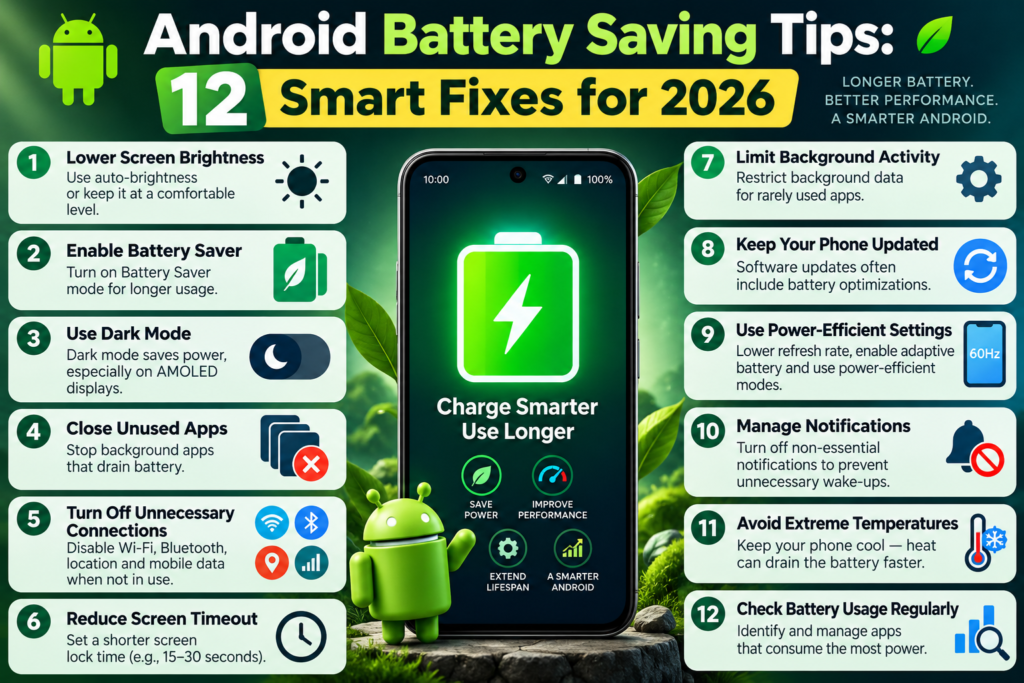

Android battery saving tips can make a real difference when your smartphone struggles to last through the day. Whether you use your device for social media, video calls, gaming, navigation or work, excessive battery drain can become frustrating.
Many Android users immediately consider replacing their phone when battery performance declines. However, changing a few settings may improve everyday battery life without spending money.
The following 12 tips explain how to identify unnecessary power consumption and keep your smartphone running efficiently.
Why Does an Android Battery Drain Quickly?
Android battery drain can have several causes. Display brightness, background applications, mobile network conditions, location services and demanding games all affect how much energy a phone uses.
Battery age also matters. Rechargeable batteries gradually lose capacity through normal use.
Before changing settings, open your phone’s battery usage screen to identify which applications and system features consume the most power.
1. Reduce Your Screen Brightness
The display is frequently one of the biggest sources of battery consumption.
High brightness is useful outdoors, but keeping it at maximum indoors wastes energy.
Open your display settings and enable adaptive brightness if available.
Reducing screen timeout to 30 seconds can also prevent the display from staying active unnecessarily.
2. Enable Android Battery Saver
Battery Saver is designed to extend battery life when your phone is running low.
Depending on the Android version and manufacturer, the feature may restrict background processes, reduce animations and delay certain activities.
You can normally find it under Settings > Battery.
Some devices allow automatic activation when battery capacity drops below a selected percentage.
3. Identify Battery-Hungry Applications
One of the most useful Android battery saving tips is checking individual app consumption.
Open Settings > Battery > Battery Usage, or the equivalent menu on your device.
Look for applications consuming unusually high amounts of power.
A video streaming application using substantial power during playback is normal. However, an application consuming battery for hours while unused may require investigation.
4. Restrict Unnecessary Background Activity
Many applications perform background tasks such as synchronising information, checking updates and sending notifications.
Restrict background activity for applications that do not need continuous access.
Avoid applying aggressive restrictions to messaging, medical, authentication or security applications when timely notifications are important.
5. Use Dark Mode on OLED Displays
Dark mode may reduce energy consumption on OLED and AMOLED screens because dark pixels can require less power.
The actual benefit depends on brightness, screen content and device technology.
On an LCD screen, the improvement may be much smaller.
Dark mode is useful, but it should not replace more effective steps such as managing brightness and unnecessary background activity.
6. Disable Unnecessary Location Access
Location services allow applications to provide navigation, nearby recommendations and location-based features.
However, applications that frequently request location information may increase battery usage.
Review location permissions and choose “While using the app” where appropriate.
Do not disable essential safety or navigation features without considering their purpose.
7. Review Notifications and Screen Wake-Ups
Frequent alerts can wake the display and encourage unnecessary phone usage.
Disable promotional notifications from shopping applications, games and other services you rarely need to hear from.
Keep important alerts enabled.
This small adjustment may help reduce screen activity throughout the day.
8. Use Wi-Fi When the Mobile Signal Is Weak
Poor mobile reception can increase power consumption because the phone works harder to maintain connectivity.
When a trusted Wi-Fi connection is available, using it may improve efficiency.
If you are travelling in an area without cellular coverage and do not require connectivity, Airplane Mode can also help conserve power.
9. Keep Android and Applications Updated
Software bugs may occasionally contribute to unexpected battery drain.
Install trusted Android security and system updates.
Update important applications through the official app store.
Updates can address bugs and improve compatibility, although a particular update is not guaranteed to increase battery life.
10. Avoid Excessive Heat
High temperatures can negatively affect battery performance and long-term battery health.
Avoid leaving your phone in direct sunlight or inside a parked vehicle.
If a smartphone becomes unusually hot while charging or gaming, stop demanding tasks and allow it to cool.
Do not attempt to cool a hot phone using a refrigerator or freezer.
11. Review Refresh Rate and Always-On Display
Some smartphones support high refresh rates and always-on display features.
These features can improve usability, but they may consume additional power.
Try adaptive refresh rate if supported.
Disable always-on display if you rarely use it.
Compare battery performance over several days before deciding whether the trade-off is worthwhile.
12. Check Battery Health Before Replacing Your Phone
If your smartphone has been used extensively for several years, battery ageing may explain shorter runtime.
Some manufacturers provide battery health information in settings or diagnostic applications.
Other devices require an authorised service centre to assess battery condition.
Replacing a degraded battery through a qualified repair provider may be more economical than purchasing a new smartphone.
For buyers comparing replacement devices, read our best smartphones under ₹15,000 in India buying guide.
Common Android Battery Saving Mistakes
Some users repeatedly close every application because they believe this always saves power.
Modern Android systems already manage many background processes, and reopening applications repeatedly can sometimes waste resources.
Another common mistake is installing unknown battery optimisation applications that request excessive permissions.
Built-in settings are generally the better starting point.
You should also avoid assuming that every phone benefits equally from the same settings.
Frequently Asked Questions
What are the best Android battery saving tips?
Reducing screen brightness, enabling Battery Saver, managing background activity and checking battery usage are useful first steps.
Does Battery Saver reduce phone performance?
It can limit background activity and certain features, depending on the device.
Is dark mode better for Android battery life?
Dark mode can help on OLED displays, but savings vary.
Why does my Android battery drain overnight?
Potential causes include background applications, poor reception, synchronisation, software problems or an ageing battery.
Final Thoughts
Following practical Android battery saving tips can improve your phone’s daily endurance without complicated software or expensive accessories.
Start by reviewing battery usage, controlling display brightness and reducing unnecessary background activity.
For additional device-specific guidance, consult Google’s official Android battery support documentation.
Small changes, tested consistently, are more useful than unrealistic promises of doubling battery life.



Pingback: Why Is Google Maps Not Updating My Location? - Usa Pic News