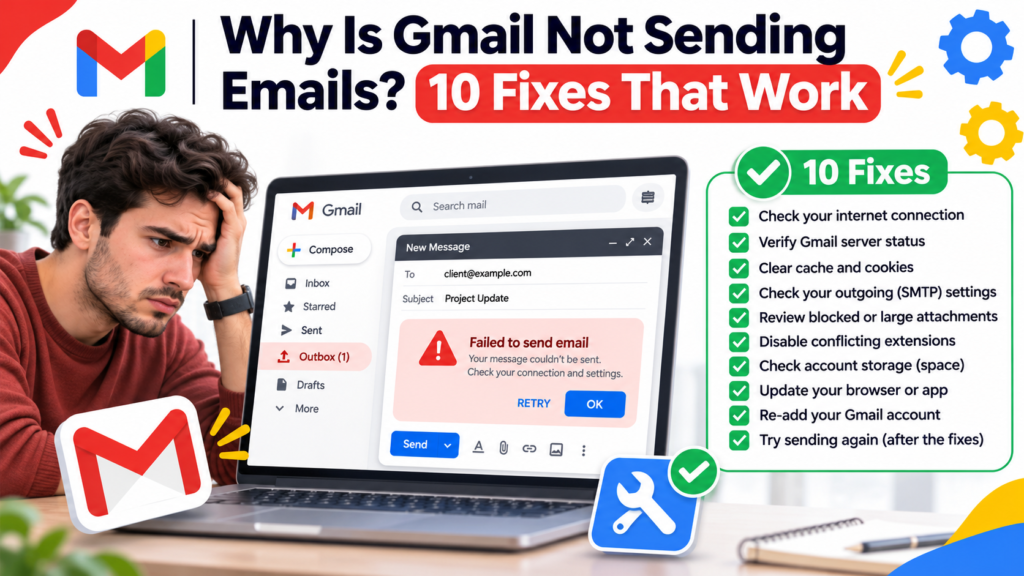

If you are searching for Gmail not sending emails, you probably need a clear answer rather than another list of settings to change at random. The same symptom can have more than one cause, and the fastest solution is to work out whether the issue happens everywhere or only in one app, account, network or device.
This practical guide walks through 10 troubleshooting checks in a safe order. Start with reversible steps, test after each change, and only consider resetting accounts or devices when you have verified that important data is backed up. Settings names may vary by manufacturer, region and software version.
Start by comparing the Gmail website with the mobile app. This tells you whether you are facing an account-wide problem or a local synchronization, alert or sending problem.
Quick diagnosis before you start
| What you notice | What to check first |
|---|---|
| The issue affects only one app or device | App permissions, updates, local settings |
| The issue affects multiple apps or devices | Connection, account or underlying system |
| It started after a recent change | New settings, updates, accessories or account changes |
| It involves money, credentials or physical safety | Stop, verify through an official channel, and avoid risky experimentation |
10 practical ways to troubleshoot
1. Check the Outbox first
Open Gmail and look for an Outbox or queued message on your device. A message sitting there has not completed sending; open it and check for an error before tapping Send again.
What the result tells you: If the message disappears from Outbox and appears in Sent, ask the recipient to confirm arrival. Do not assume that a message showing in Drafts was delivered.
2. Confirm connectivity without relying on the Wi-Fi icon
Open a normal webpage, then try a different trusted network. Airplane Mode, captive hotel Wi-Fi portals and intermittent mobile data can interrupt a send even when the phone looks connected.
What the result tells you: Retry one small plain-text test email after the connection is stable; this separates a network problem from an attachment problem.
3. Check available Google storage
Open your Google storage manager. A full account can interfere with sending and receiving Gmail messages because Gmail, Drive and Photos share a quota.
What the result tells you: Remove unnecessary data carefully and check Trash only after saving important files. Space changes may not show immediately; see Google’s storage guidance.
4. Remove an unusually large attachment
Draft a new message containing only a short sentence, no attachments and one trusted recipient. If that sends, inspect the original files and total attachment size.
What the result tells you: Gmail has attachment-size limits. Use an appropriate cloud-sharing link for larger files and double-check that its access permissions match your intentions.
5. Check the recipient address
Look for a misspelling, unexpected spaces or an outdated domain. If Gmail displays a delivery-status notification, read its diagnostic text rather than repeatedly resending.
What the result tells you: A bounce can mean the address does not exist, a recipient server rejected the message, or a mailbox has a problem; each requires a different fix.
6. Update the Gmail application
Install the latest supported version from the official app store, then close and reopen it. Restart the device if queued messages remain frozen.
What the result tells you: Updating is safer than deleting the app’s local data. Make sure any unsent draft is preserved before stronger resets.
7. Review Gmail sync and device storage
On Android, verify the right Google Account is selected, Gmail synchronization is enabled where available and the phone has enough free device storage.
What the result tells you: Battery restrictions or disabled background data may delay queued sends. Allow background activity temporarily and test again.
8. Test in a desktop browser
Sign in at mail.google.com using a browser and send a simple message to a trusted address. Compare the result with the phone app.
What the result tells you: If the browser succeeds but the phone fails, concentrate on the app and device. If both fail, investigate account status and delivery errors.
9. Inspect account security notices
Check whether Google requests account verification or has flagged unusual activity. Use the account’s official security page rather than following unexpected email links.
What the result tells you: Do not give a third party your verification code or password to ‘fix’ an outgoing mail problem.
10. Check for a service incident and capture the error
If sending fails on several devices and networks, consult Google’s status information and record the exact error wording, time and device.
What the result tells you: A specific error helps distinguish temporary platform issues from storage, authentication or recipient-side problems.
Related troubleshooting guides
If you have trouble receiving as well as sending mail or seeing alerts, compare these symptoms with our Gmail receiving troubleshooting guide. For another related topic, see Android Battery Saving Tips.
How to prevent the problem from returning
Save a short record of what fixed the issue, including the app version and the setting you changed. Review permissions and software updates periodically, and avoid installing unknown “repair” tools that promise instant results. If a problem reappears after every reboot, it may indicate a deeper account, device, accessory or network issue.
Most importantly, protect your data while troubleshooting. Make copies of irreplaceable files and messages, confirm that backups can actually be restored, and never disclose passwords, one-time codes or recovery keys to someone offering unsolicited technical help.
Frequently asked questions
Why do messages stay in the Gmail Outbox?
An Outbox message has not completed the send process. Check the network, open the pending message and read any error before retrying once.
Can full Google storage stop outgoing mail?
Yes. Google says an account over its quota can lose the ability to send and receive Gmail messages. Review shared Google storage and preserve important files before deleting anything.
Why does Gmail send in a browser but not the app?
A successful browser test suggests an app or device issue. Check Gmail synchronization, local storage, updates and battery restrictions before resetting app data.
Final thoughts
The most reliable way to resolve Gmail not sending emails is to isolate the failing component, try the simplest reversible fix and verify the result. If none of the checks work, record any exact error messages and consult the official support channel for your device, account or service. Avoid irreversible resets unless you understand the consequences.
Official reference: Read the relevant help or safety guidance.