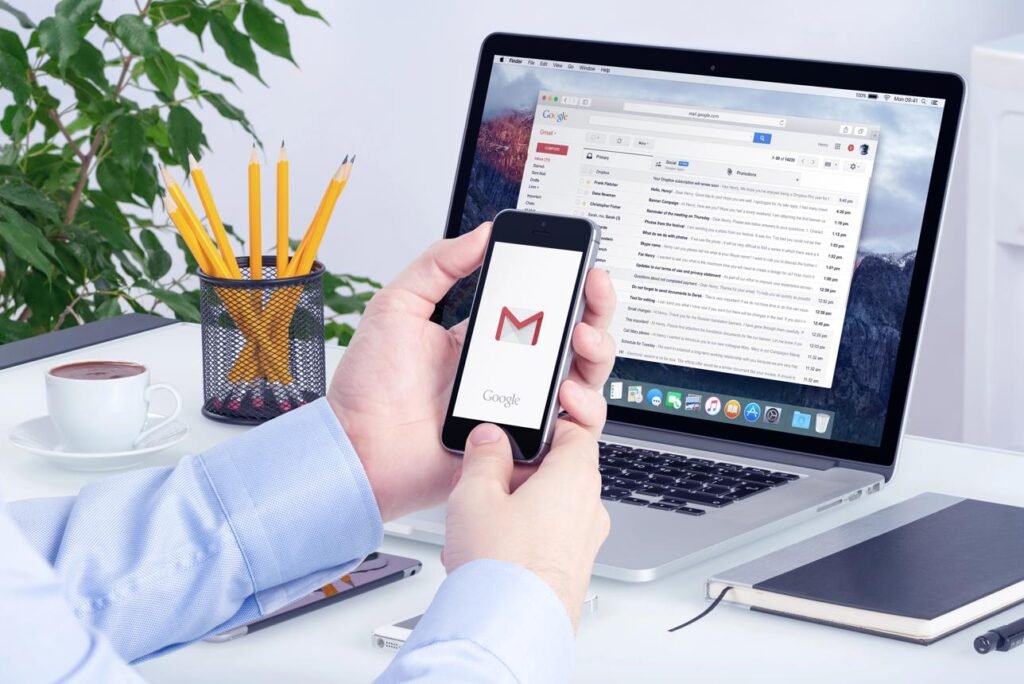

Are you waiting for an important email that never arrives? Maybe you are expecting a password reset link, a job interview invitation, a shopping confirmation, or a message from a friend. You refresh your Gmail inbox several times, but nothing appears.
If you are wondering, “Why am I not receiving emails in Gmail?”, there are several possible explanations. Your Google storage might be full, incoming messages could be going to Spam, or your Gmail app might have stopped syncing.
The good news is that many of these problems can be investigated without advanced technical knowledge.
This guide explains 12 practical ways to troubleshoot Gmail receiving problems on computers, Android phones, and iPhones.
1. Check Your Internet Connection
Before changing Gmail settings, make sure your device has a working internet connection.
A weak Wi-Fi signal or temporary mobile network problem can prevent the Gmail app from displaying newly received messages.
Try these steps:
- Open a website in your browser.
- Switch between Wi-Fi and mobile data, if available.
- Restart your router if other websites are also failing.
- Turn Airplane Mode on and then off.
- Open Gmail again and refresh the inbox.
If Gmail works through a browser but not through the mobile app, the problem may be related to app synchronization rather than email delivery.
2. Check Gmail’s Spam Folder
Gmail automatically identifies potentially unwanted messages and moves some of them to Spam.
However, legitimate messages can occasionally be classified incorrectly.
To check:
- Open Gmail.
- Expand the left sidebar if necessary.
- Click Spam.
- Search for the missing sender or message.
- If the email is legitimate, open it and select Report not spam.
Be cautious with unexpected messages requesting passwords, verification codes, or payment information. Do not mark a suspicious email as safe simply because you were expecting a message.
Google generally deletes messages from Spam after 30 days, so checking this folder promptly is important.
3. Check Whether Your Google Storage Is Full
One of the most important reasons Gmail stops receiving emails is insufficient Google Account storage.
For many personal Google Accounts, the free storage allowance is 15 GB, shared across services including Gmail, Google Drive, and Google Photos.
When the account reaches its storage limit, Gmail may stop accepting incoming emails. Messages can be returned to senders rather than held for later delivery.
How to check your storage
- Open Google One Storage.
- Review how much space is being used.
- Identify large files or emails you no longer need.
- Remove unnecessary content.
- Empty Trash only after checking that nothing important remains.
You can also search Gmail for large attachments with a query such as:
larger:10M
This shows emails larger than approximately 10 MB.
Important: Permanently deleted emails and files may not be recoverable. Download or back up important information before deleting it.
Google also notes that storage usage can take time to update after large deletions.
Once storage is available again, ask the sender to resend any messages that bounced while the account was full.
4. Search All Mail Instead of Only the Inbox
Sometimes an email is delivered successfully but does not appear in your primary inbox.
It might have been archived, categorized, or moved by an email filter.
Use Gmail’s search bar to look for the missing message.
Useful search examples include:
in:anywhere from:example@example.com— searches broadly for messages from a particular sender, including Spam and Trash.after:2026/10/01— searches for messages received after a selected date.has:attachment— finds emails with attachments.
Replace the example email address or date with the information relevant to your search.
You should also check Gmail’s All Mail, Promotions, Social, and Updates sections where available.
If you find the message outside the inbox, it means Gmail received it, and you can investigate why it was categorized or archived.
5. Review Gmail Filters and Blocked Addresses
Gmail filters automate actions such as applying labels, archiving messages, forwarding emails, or deleting messages.
A filter configured incorrectly can hide important incoming emails.
How to review your filters
- Open Gmail on a computer.
- Click the Settings gear icon.
- Select See all settings.
- Open Filters and Blocked Addresses.
- Review any existing rules.
- Edit or remove filters that are causing unwanted actions.
Pay special attention to filters configured to skip the inbox or delete matching messages.
If an expected sender has been blocked, their messages may be directed to Spam. Review your blocked addresses and unblock trusted senders when appropriate.
Avoid deleting every filter without reviewing it, because some may be important for your usual inbox organization.
6. Check Whether Email Forwarding Is Enabled
Gmail allows incoming messages to be forwarded to another email address.
Depending on how forwarding is configured, emails may be removed from your inbox, archived, or marked as read.
To review forwarding:
- Open Gmail on your computer.
- Go to Settings → See all settings.
- Select Forwarding and POP/IMAP.
- Review any forwarding address and the selected action for Gmail’s copy.
- Change the settings if necessary.
- Save your changes.
If you discover an unfamiliar forwarding address, consider it a potential account security issue.
Review your Google Account security activity, change your password if appropriate, and enable two-step verification.
7. Fix Gmail Sync Problems on Android
If Gmail receives emails in a desktop browser but not on your Android phone, synchronization may be the problem.
Try the following:
- Open the Gmail app.
- Tap your profile picture and verify that you are using the correct account.
- Open Gmail Settings from the app menu.
- Select the affected account.
- Check whether Sync Gmail is enabled, where the setting is available.
- Return to your inbox and swipe down to refresh.
Also check whether Battery Saver, background data restrictions, or limited device storage are interfering with Gmail.
Restarting the phone and updating the app may resolve temporary glitches.
Google’s official Gmail sync troubleshooting guide provides additional steps.
Avoid clearing Gmail app storage as your first solution. Doing so may remove local drafts and certain app settings.
8. Troubleshoot Gmail on iPhone
If you are not receiving Gmail emails on an iPhone, first determine whether the problem occurs in the Gmail app, Apple’s Mail app, or both.
Start with these steps:
- Open Gmail in Safari at mail.google.com.
- Verify that new messages appear in the browser.
- Check the correct Google Account is selected in your mail app.
- Update the Gmail app or iOS when applicable.
- Review the app’s background refresh and connectivity settings.
- Close and reopen the affected email app.
If you use Apple Mail, check the account’s mail-fetch settings. Gmail accounts added through Apple Mail may not update in the same way as the official Gmail app.
Remember that delayed notifications are not necessarily the same as missing messages. An email may already be in the inbox even though no notification appeared.
9. Check Gmail Using a Different Device
Testing Gmail on another device helps identify whether the problem is account-wide or limited to one application.
For example:
If emails appear on your laptop but not on your phone, investigate app synchronization, background data, and local settings.
If emails are missing on every device, investigate Spam, filters, storage, forwarding, and possible delivery failures.
This simple comparison can save time by preventing unnecessary changes to your Google Account.
10. Ask the Sender to Check for Delivery Errors
Sometimes Gmail is working correctly, but the sender’s message never reaches your account.
Ask the sender to confirm:
- They entered your email address correctly.
- The message appears in their Sent folder.
- They received any bounce or delivery-failure notification.
- The attachment was not rejected because of its size or file type.
- Their email service did not report a sending problem.
A delivery failure notification may contain an error code or explanation.
For example, if your Google storage is full, the sender might receive a message explaining that your account cannot accept incoming email.
If the missing email is a password reset message, check the address registered with the service and use its official resend option.
Never share password reset links or verification codes with someone offering to troubleshoot your account.
11. Review Connected Email Applications
Some users access Gmail using Microsoft Outlook, Apple Mail, or another email client.
If one of these programs is configured to delete or archive messages, those changes can also affect what appears in Gmail.
Open Gmail in a browser and review the account’s forwarding and POP/IMAP settings.
Then inspect the email client’s account settings for actions that remove messages from the server.
If the problem began after connecting a new app, examine that application’s permissions and behavior.
You can review third-party access through your Google Account Security settings.
Remove access for services you do not recognize or no longer use.
12. Check for Google Service Disruptions
Occasionally, an email problem may be caused by a service disruption rather than a setting on your device.
Google provides a Google Workspace Status Dashboard showing incidents affecting services such as Gmail.
Although the dashboard is primarily focused on Workspace services, it can help identify known service incidents.
If Gmail appears unavailable across multiple devices and networks, check for a confirmed service problem before changing settings.
When services return to normal, verify that new messages arrive and contact important senders if a message is still missing.
How to Fix Gmail Not Receiving Emails From One Person
If you receive messages from everyone except one particular sender, the problem is more specific.
Start by searching for their full email address using Gmail’s search feature.
Then check your Spam folder, blocked addresses, and filters.
Ask the sender to send a new message with a simple subject and no attachment. If they receive an error, request the non-sensitive error details so you can identify the cause.
If the sender is using a business domain, their email administrator may need to investigate email authentication or delivery configuration.
For example, incorrectly configured SPF, DKIM, or DMARC authentication can contribute to email rejection or spam classification, although the exact outcome depends on the sending setup and Gmail’s evaluation.
How to Prevent Missing Gmail Emails in the Future
A few good habits can reduce email delivery and visibility problems.
Review Google storage regularly
Monitor storage usage before it reaches the limit. Delete unnecessary large attachments only after saving important files elsewhere.
Keep your apps updated
Install supported updates for Gmail and your phone’s operating system.
Review filters after making changes
If you create inbox automation, verify that important messages still appear where expected.
Secure your Google Account
Use a strong, unique password, enable two-step verification, and regularly review connected devices and applications.
Avoid unnecessary third-party mail tools
Only authorize email applications you trust, and understand their permissions before granting access.
Test important email addresses
If you depend on Gmail for job applications, banking notices, online purchases, or business communication, periodically confirm that you can receive a test message.
These precautions cannot prevent every delivery problem, but they can make problems easier to detect.
Frequently Asked Questions
Why is my Gmail not receiving emails but sending works?
You may have insufficient Google storage, an incoming-message filter, a forwarding rule, or a problem affecting messages from particular senders. Check your storage and search All Mail, Spam, and Trash before making other changes.
Why am I not receiving verification emails in Gmail?
Verification messages might be in Spam, delayed by the sender, sent to another address, or blocked by a delivery issue. Confirm your address and request a fresh verification message from the official website.
Why is Gmail not receiving emails on my phone?
If emails appear on the Gmail website but not on your phone, check internet connectivity, account selection, app synchronization, background data settings, and available device storage.
Can a full Gmail account stop receiving emails?
Yes. When your Google Account reaches its storage limit, Gmail may stop accepting incoming emails. Messages rejected during that period may need to be resent after storage has been cleared.
Why are Gmail emails going to Spam instead of my inbox?
Gmail may classify messages as suspicious or unwanted based on its spam detection systems. Check the sender carefully before marking legitimate messages as not spam.
How do I know whether Gmail is down?
Check the Google Workspace Status Dashboard and compare Gmail’s behavior on different devices or networks. A confirmed service disruption may explain widespread problems.
Final Thoughts
If you are not receiving emails in Gmail, begin with the simplest checks: internet connectivity, Spam, All Mail, and Google storage.
Next, investigate filters, forwarding settings, and app synchronization. If the problem affects only one sender, ask them to check for delivery failures rather than repeatedly changing your device settings.
Most importantly, distinguish between an email that was never delivered and one that arrived but was hidden, archived, or not displayed by an app.
Using that approach can help you identify the actual cause and restore reliable access to important messages.


Pingback: Why Is Gmail Not Sending Emails? 10 Fixes That Work
Pingback: Gmail Notifications Not Working on Android? 12 Easy Fixes